How to Unblur a Video with AI

Learn how to unblur a video using powerful AI tools. This guide provides actionable steps to fix blurry footage and restore clarity for professional results.
You absolutely can unblur a video these days, and the results are often far better than you might expect. Forget those old-school sharpening filters that just made things look grainy. Modern AI-powered software, like SoReel, can intelligently reconstruct the missing details, effectively turning back the clock on what caused the blur in the first place. It analyses movement and context within your footage to restore genuine clarity, tackling everything from camera shake to nasty compression artefacts.
Why Your Videos Are Blurry and How AI Can Help
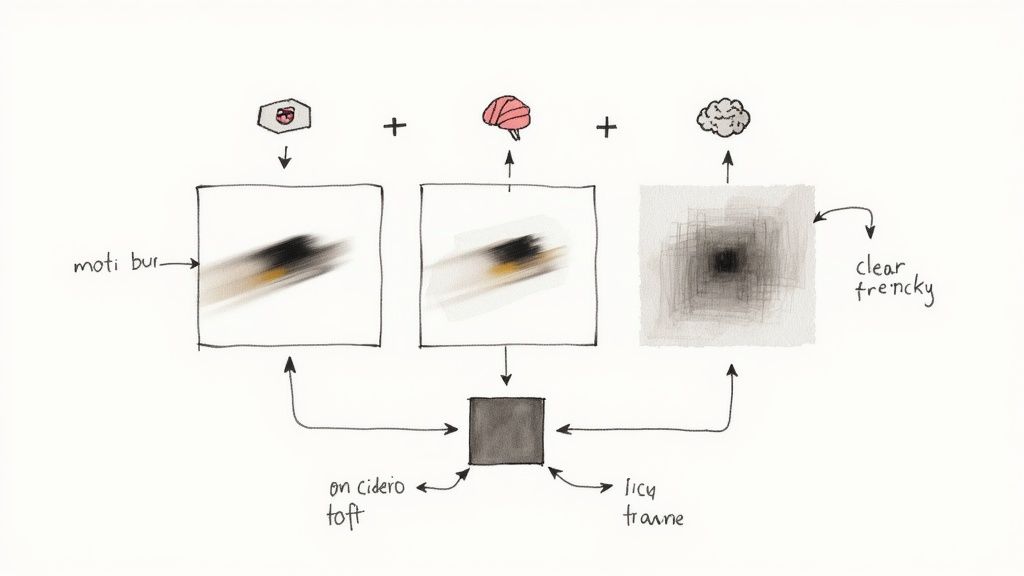
It's a frustration every video creator knows. You've captured what should be a perfect shot, but on playback, it’s soft, out of focus, or disappointingly pixelated. This isn't just one problem, though. Blurriness can creep in from a whole range of technical issues that mess with the visual information in your video file. Pinpointing the cause is the first real step toward fixing it.
To help you figure out what you're up against, here’s a quick breakdown of the most common types of video blur.
Common Types of Video Blur and Their Causes
| Type of Blur | Visual Characteristic | Common Cause |
|---|---|---|
| Motion Blur | Streaky or smeared appearance, often following the direction of movement. | Camera shake, fast-moving subjects, or a slow shutter speed. |
| Focus Blur | The entire frame or the intended subject is soft and lacks a sharp focal point. | Autofocus failed to lock on, or manual focus was set incorrectly. |
| Compression Artefacts | Blocky, pixelated look, especially in dark areas or fast-motion scenes. | Aggressive video compression to reduce file size for streaming or sharing. |
| Gaussian Blur | A uniform, soft haze across the image, often applied intentionally for artistic effect. | A deliberate software effect applied in post-production. |
By identifying which type of blur is affecting your footage, you'll have a much better idea of how an AI tool can approach the repair.
The Digital Side of Blurriness
Physical recording mistakes are only half the story; digital processes are often the real culprits. Every single time a video is saved, uploaded, or shared online, it goes through compression. This is a necessary evil that shrinks the file size by throwing away visual data the algorithm decides is "less important." The result? Those tell-tale blocky artefacts and a general loss of sharpness. It’s the reason a video can look pristine on your camera's screen but fuzzy after you've sent it through WhatsApp.
This is a huge issue given how we watch content now. Trends in UK media consumption, for example, show a massive shift towards streaming and social media – platforms known for their heavy-handed compression. While there isn't specific data on how many people in the UK are using deblurring tools, the demand for clearer content is obvious. You can dig deeper into the complexities of UK media data and its interpretation to see the scale of the issue.
The big problem with traditional "sharpen" filters is that they're just not clever. They work by simply boosting the contrast along any edges they can find. This doesn't restore any real detail; it just makes a blurry video look gritty and artificial.
How AI Changes the Game
This is where AI-powered tools come in with a completely different, much smarter strategy. Instead of just slapping a generic sharpening effect over your footage, an AI model has been trained on thousands of hours of high-quality and low-quality video. It has learned what people, textures, and movements are supposed to look like.
When this AI gets to work on your blurry clip, it isn't just guessing. It's performing an incredibly sophisticated reconstruction by:
- Predicting Motion: For motion blur, it meticulously analyses the path of objects from one frame to the next to reverse the smearing effect.
- Reconstructing Detail: When faced with focus blur or compression artefacts, it intelligently fills in the missing pixel information, drawing on its vast library of training data.
- Preserving Natural Texture: Unlike those old filters, it works hard to avoid creating harsh, fake-looking edges, aiming for a result that looks authentically sharp.
In short, AI doesn't just sharpen your video; it rebuilds it. This intelligent process is what allows you to genuinely unblur a video, recovering lost quality in a way that was simply impossible just a few years ago. It can take a blurry, unusable clip and make it look crisp and professional again.
Prepping Your Footage for an AI Glow-Up
It’s tempting to just throw your blurry video straight into an AI tool and hope for the best. I’ve seen it a hundred times, and it’s a classic mistake that almost always leads to disappointing results. The truth is, the quality you get out is directly tied to the quality you put in.
Think of it like this: you're giving the AI a canvas to paint on. The cleaner and better-prepped that canvas is, the more stunning the final masterpiece will be. A few minutes of prep work can make a world of difference.
First things first, you need to track down the absolute best version of your video file. This might mean digging out an old hard drive or asking the person who sent it to you for the original camera file, not the compressed version they sent over WhatsApp. Even a tiny improvement in the source quality gives the AI so much more data to work with, which is a game-changer when you’re trying to unblur a video.
Pinpoint the Problem Spots
Once you've got the best source file, don't just process the entire thing. Most of the time, only a few moments in a video are actually blurry—maybe a bit of camera shake here, a quick focus pull there. Trimming your clip down to only these problem sections is a pro move that helps in a couple of key ways:
- It’s way faster. AI processing takes a lot of computing power. Why spend an hour on a 10-minute video when you only need to fix a 10-second clip?
- It focuses the AI’s effort. This lets the algorithm pour all its resources into fixing the frames that actually need help, instead of wasting energy on the parts that are already sharp.
We actually dive deep into smart strategies like this for creative workflows over on the SoReel blog.
Get Your Video Format in Order
Before you hit that upload button, take a second to check your video's format. Some files, especially ones from phones that use a variable frame rate (VFR), can create weird glitches and artefacts when an AI tries to process them. These AI models work best with a consistent, predictable stream of information.
Converting your video to a stable format with a high bitrate can head off these problems. It just makes sure the AI isn't wrestling with file inconsistencies and can put all its energy into the real job: deblurring your footage.
A lot of people think AI can magically fix any file you give it. The reality is, a well-prepared video is like a well-prepped patient before surgery—it massively boosts the chances of a fantastic outcome.
I remember one project where a client sent a blurry clip from an old phone. The first pass with the AI came back all jittery and strange. It turned out the culprit was the variable frame rate. I converted it to a constant frame rate MP4, upped the bitrate, and ran it again. The result? Flawless. The AI had the stable foundation it needed to work its magic.
This whole prep stage—finding the source, trimming it down, and sorting out the format—isn't just a box-ticking exercise. It's the bedrock of any successful video enhancement. It’s how you stop hoping for a good result and start engineering an excellent one.
Unblurring Your Video with SoReel: A Practical Walkthrough
Right, your footage is prepped and ready to go. Now for the exciting part – taking that blurry clip and letting SoReel’s AI work its magic to bring back the clarity. The platform gives you a couple of ways to get started, whether you’re working with a file saved on your computer or pulling a video straight from a URL.
We'll cover both routes. I want to show you more than just which buttons to press; I want to explain the thinking behind each choice so you can make smart decisions and get the best possible result for your specific video. Let’s dive in.
The Standard File Upload Method
This is the path most people will take. You’ve got a video file on your desktop or hard drive, and you need to get it into SoReel to be processed. The whole thing is designed to be dead simple, but a few key decisions at this stage can make a huge difference to your final output.
First, head over to the SoReel dashboard. You’ll immediately see a clear prompt to upload your video. You can either drag and drop your file right onto the page or click to browse your computer. It handles all the common video formats, so you shouldn't run into compatibility problems, especially if you followed the preparation tips from before.
Once your video is loaded, the real work happens in the settings panel.
Choosing the Right AI Model
SoReel isn’t a one-size-fits-all tool. It offers a few different AI models, each one trained to fix a specific kind of problem. Getting this step right is crucial. Picking the wrong model is a bit like using a spanner to hammer in a nail – you might get there eventually, but the result won't be pretty.
Here's a quick rundown of your options:
- General Enhancement: This is your go-to for videos that are just a bit soft or suffering from that grainy, blocky look caused by compression. It’s great for sharpening up details and cleaning away digital noise without going overboard.
- Motion Deblur: This one is specifically built to tackle camera shake or fast-moving subjects. It cleverly analyses the direction of the blur from one frame to the next and works to reverse it, bringing definition back to objects in motion.
- Focus Correction: If you’ve got footage where the focus was just slightly missed, this is the model for you. It tries to reconstruct the details that were lost in that soft focus, which, from experience, is one of the toughest types of blur to fix.
Take a good look at your footage and pick the model that best fits the problem. If you've got a video that suffers from both motion blur and compression artefacts, I'd suggest starting with the Motion Deblur model first. You can always run the clip through a second time for a general enhancement if it still needs it.
My personal rule of thumb is to always tackle the biggest problem first. If you have a cyclist who is just a blurry streak across the screen, fixing that motion blur is the absolute priority. You can worry about the general softness afterwards.
Processing Directly From a URL
Here’s a feature I find incredibly useful, especially for anyone working with content from other AI platforms like Sora. SoReel lets you process a video straight from a web link. This completely cuts out the tedious download-then-upload cycle, saving you a heap of time and bandwidth.
The process couldn't be more straightforward. Instead of choosing a file from your computer, you’ll select the "Import from URL" option. Just paste the link to the video you want to fix, hit "Import," and SoReel will grab the video directly from the source and get it ready for enhancement.
This workflow is a real game-changer for marketers and creators on a tight deadline. For example, if you're pulling a clip from a cloud storage link or a Sora 2 output, you can have it sharpened and ready for social media in a fraction of the usual time.
This visual guide breaks down the simple prep work that leads to a great result.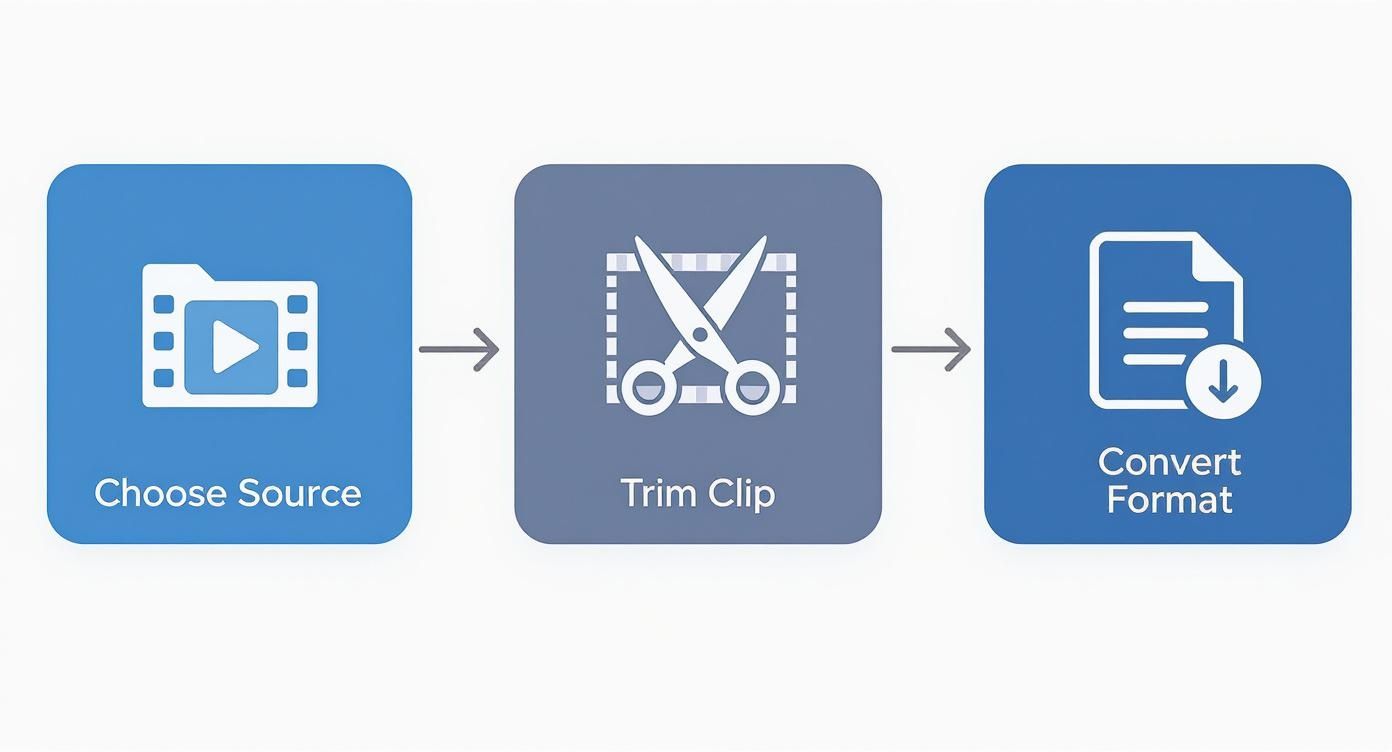
As the infographic shows, it all starts with a good source. Trimming down to the essential clip and ensuring a stable format are the foundations for any AI video enhancement job.
Finalising and Downloading Your Polished Video
Once you’ve selected your upload method and picked the right AI model, it’s time to kick off the process. SoReel will give you a rough estimate of how long it will take, which can change depending on the video's length, resolution, and how busy the servers are. When it's finished, you'll be shown a handy side-by-side preview.
This is your moment to do a quality check. Don't just glance at it – play the video back and look closely for a few things:
- Restored Detail: Is the subject noticeably sharper and more defined?
- Natural Texture: Has the AI managed to avoid creating that overly digital or "plastic" look?
- No New Artefacts: Are there any weird visual glitches or distortions that weren't there before?
If you’re happy with how it looks, you can download the enhanced video. For those of you managing bigger projects or a constant stream of content, it’s worth exploring the different subscription tiers. You can find out more about the various plans and processing credits on the SoReel pricing page to find one that fits your needs. This is particularly useful for agencies or creative teams that need to process videos in bulk.
Whether you upload a file or paste in a URL, the core principles don't change. Make a thoughtful choice about the AI model, review the output carefully, and you’ll consistently turn blurry footage into clear, professional-looking content.
Mastering Advanced Settings for Pro Results
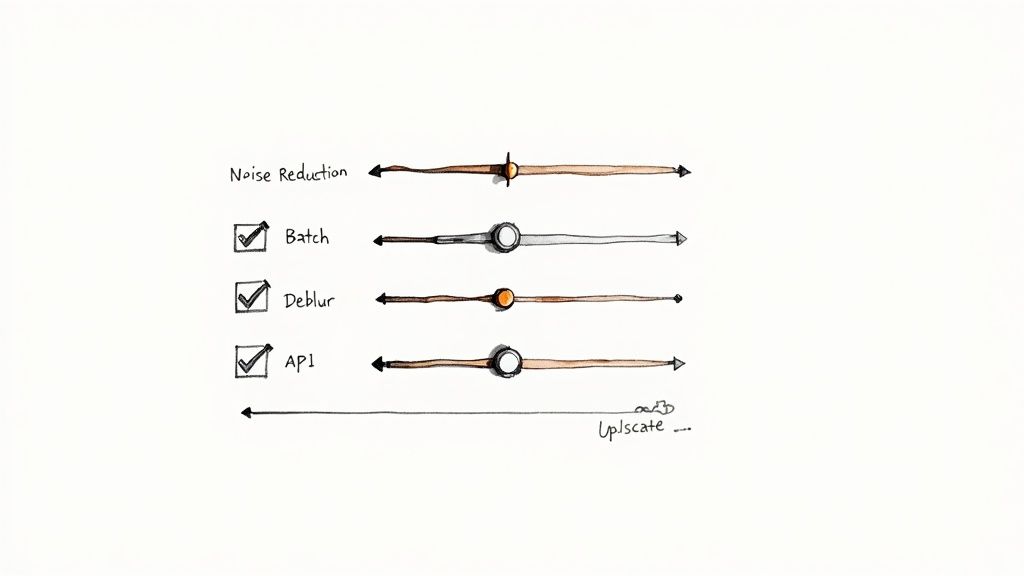
Just running a video through an AI's default settings will get you part of the way there, but the real magic happens when you start digging into the advanced controls. This is where you graduate from a quick fix to genuinely professional video restoration. It's all about understanding how the different tools—upscaling, noise reduction, and bitrate—work together to create a final product that isn't just sharper, but truly clean and detailed.
Trying to use one of these tools in isolation often leads to wonky results. For example, upscaling a video without treating the digital noise first will just give you bigger, uglier noise. Getting them to work in harmony is the secret to a polished, professional finish.
The Power of AI Upscaling and Denoising
One of the most impressive tools in the box is AI upscaling. This isn't your old-school 'stretch-to-fit' enlargement. The AI intelligently builds new pixel data to genuinely increase the video's resolution, which is fantastic for turning old 720p footage into something that looks sharp on a modern 4K screen.
There's a catch, though. Upscaling can also amplify any existing digital grain or noise, making it more distracting. That’s why noise reduction is your secret weapon. I can't stress this enough: always apply noise reduction before you attempt to unblur or upscale a video.
Why that specific order? Simple. If you sharpen a noisy clip, the AI will diligently sharpen all that grainy noise right along with the details you want to keep. The result is a gritty, over-processed mess. By cleaning up the noise first, you're giving the deblurring algorithm a clean slate to work from, leading to a much smoother, more natural-looking result.
The sequence of operations is everything. Cleaning the footage with noise reduction first prevents the AI from making bad decisions later. It’s like washing vegetables before you start chopping them—a simple prep step that guarantees a better outcome.
Optimising Bitrate for Final Delivery
Once you’ve cleaned, sharpened, and maybe even upscaled your video, the last hurdle is the bitrate. This setting controls how much data is used for each second of video, directly affecting both the file size and the final visual quality.
When you unblur a video, you're adding a huge amount of detail back in. To make sure all that hard work isn't lost, you have to save the file with a high enough bitrate. If you export with a low bitrate, you’ll introduce compression artefacts and essentially throw away the very clarity you just restored.
Here are a couple of pointers:
- For web streaming (social media, etc.): A variable bitrate (VBR) is usually your best bet. It intelligently allocates more data to complex, fast-moving scenes, giving you a good balance between quality and file size.
- For archiving or high-quality playback: Use a constant bitrate (CBR) at a higher value. This ensures consistent quality from start to finish, though the file will be significantly larger.
It’s always worth experimenting with your export settings. The goal is to find that sweet spot where you retain all the enhanced detail without ending up with a file that's too massive for how you plan to use it.
To help you navigate these settings, here's a quick guide to what each feature does and how to get the most out of it.
SoReel Feature Optimization Guide
| Feature | Best Use Case | Pro Tip for Optimal Results |
|---|---|---|
| Deblurring Intensity | Footage with motion blur or slight camera shake. | Start low and increase gradually. Overdoing it can create unnatural-looking edges or artefacts. |
| Noise Reduction | Grainy video from low-light conditions or older cameras. | Apply this first! Setting this to a medium level before any sharpening is key to a clean final output. |
| AI Upscaling (2x, 4x) | Converting lower-resolution clips (e.g., SD, 720p) for use in 1080p or 4K projects. | Upscale after deblurring and denoising. This ensures you're enhancing a clean image, not just magnifying flaws. |
| Bitrate Control | Final export stage to balance file size and quality. | Use VBR for online content and CBR for master files. For a crisp 1080p video, aim for a bitrate of at least 8-12 Mbps. |
Getting comfortable with these controls will make a massive difference in your final results, pushing them from 'good enough' to 'genuinely impressive'.
Streamlining Your Workflow with Batch Processing
Fixing a single clip is one thing, but what if you're dealing with an entire project's worth of blurry footage? This is where batch processing becomes a lifesaver. Instead of painstakingly applying your settings to each video one by one, you can line them all up in a queue and have them processed automatically.
This is a huge time-saver for anyone handling a high volume of content, from marketing agencies to event videographers. Say you filmed an entire conference with a camera that had a minor focus issue. You can dial in your perfect deblurring and denoising settings once, apply them to the whole batch, and let the software do the heavy lifting.
Understanding just how much video is out there is crucial. The demand for high-quality content has exploded. To get a sense of the scale, you can explore the UK social media statistics on Talkwalker and see why visual quality is no longer optional.
Integrating Enhancements with an API
For the ultimate in automation, an API (Application Programming Interface) is the way to go. It allows you to build SoReel's video enhancement technology directly into your own software, website, or automated systems. Rather than using the web interface, your platform can programmatically send videos for processing.
This is incredibly powerful for scenarios like:
- User-Generated Content Platforms: Automatically enhance all user-uploaded videos to maintain a consistent standard of quality across your site.
- Marketing Automation: Set up a pipeline where new video ads are automatically sharpened and optimised before being pushed to different platforms.
- Digital Asset Management: Build enhancement into the ingestion process, so every new video added to your library is automatically improved.
Using an API turns a manual, click-by-click task into a seamless, 'hands-off' part of your production pipeline. It's how you unblur a video at scale, ensuring every piece of content meets your quality threshold without constant human oversight.
Navigating Common Problems and Ethical Use
Even the best AI isn't a magic wand, and sometimes the first pass at unblurring a video doesn't quite hit the mark. When you're trying to fix blurry footage, you might bump into a few common quirks. The trick is knowing what they are and how to gently guide the AI towards a better result.
Sometimes, the AI can be a bit overzealous. The most common hiccup is over-sharpening, which makes your video look brittle, harsh, and unnaturally digital. If you see this, the fix is usually straightforward. Just pop back into the enhancement settings and dial down the sharpening or deblurring intensity. I always find it's better to start low and nudge the settings up bit by bit until you find that perfect sweet spot.
Dealing with Visual Artefacts and Colour Shifts
Another thing to watch out for is the appearance of strange visual artefacts. These can show up as a shimmer around edges, odd blocky patterns in what should be smooth areas, or even a subtle "wobble" in textures. This usually happens when the AI is trying its best to interpret a really complex or heavily compressed part of your footage.
A great tip here is to apply a gentle noise reduction before you run the deblurring process. Cleaning up the source footage first can stop the AI from getting confused and misinterpreting digital grain as actual detail.
You might also spot a slight colour shift after the AI has worked its magic. Because the tool is essentially rebuilding parts of the image, it can occasionally knock the original colour balance off-kilter. Don’t panic. Most professional video editors have simple colour correction tools that can sort this out in seconds. A quick tweak of the saturation or temperature sliders is usually all it takes to get things looking right again.
Think of AI video enhancement as a partnership. The tool does the heavy lifting, but it’s your eye that guides it. Never be afraid to experiment and run a clip through a second time with different settings to get the result you’re after.
High-quality video has become the standard, from professional marketing campaigns to personal social media. As viewing habits in the UK continue to gravitate towards crisp streaming and engaging social content, the pressure for clear, polished video has never been greater. You can read more about how UK media consumption is changing on Niche Magazine to get a better sense of the current landscape.
The Critical Line of Ethical Video Enhancement
Fixing technical glitches is one thing, but using these powerful tools responsibly is a far more important conversation. The ability to unblur or alter a video with AI brings with it a serious responsibility, especially when it comes to copyright and authenticity.
The most obvious ethical minefield is watermark removal. A watermark is the creator's signature—it's their legal claim of ownership over their work. Using an AI tool to remove a watermark from a video you don't own the rights to is almost certainly copyright infringement, and it can land you in serious legal trouble.
Put it this way: removing a watermark is like scraping an artist's name off a painting and passing it off as your own. It's unethical, and it's illegal. You should only ever use watermark removal features on content you’ve created yourself or when you have explicit permission from the copyright holder.
Altering Footage for Evidence or Documentation
Another crucial area to consider is the alteration of footage that might be used as evidence. While AI can work wonders clarifying a blurry number plate on a security camera video, it's vital to understand what's actually happening. The "unblurring" process involves the AI making intelligent guesses to reconstruct the image—it's adding new pixel data based on its training, not just magically revealing what was already hidden.
This raises big questions about authenticity. Could an AI-enhanced video be challenged in court? You bet it could. If you ever need to use enhanced video for official purposes, it is absolutely essential that you:
- Preserve the Original: Always keep a clean, unaltered copy of the original blurry footage.
- Document Your Process: Make a note of the tool you used and the exact settings you applied.
- Be Transparent: When presenting the footage, make it clear that it has been enhanced by an AI.
Ultimately, the power to unblur a video can be immense. It can restore cherished memories, sharpen up marketing content, and clarify crucial details. But this power has to be used with a strong sense of responsibility, with full respect for intellectual property and a commitment to being transparent.
Frequently Asked Questions
When you're trying to fix a blurry video, the same questions tend to crop up. Let's get them answered so you can get the best results without any guesswork.
Can AI Really Unblur Any Video Perfectly?
Honestly, while today's AI is seriously impressive, it's not a miracle worker. It does its best work on footage that's moderately blurry, where it can still figure out the underlying shapes and movement. Think of it less like creating something from nothing and more like a master artist restoring a slightly faded painting.
If a video is a complete, unrecognisable mess, the AI has to start guessing what was originally there. This can sometimes lead to a result that looks a bit strange or "hallucinated." The golden rule is simple: the better the video you start with, the better the final result will be.
How Long Does It Take to Process Everything?
This one really depends. The two biggest factors are the length of your video and its resolution. A quick 15-second clip in 1080p might be done in a few minutes. On the other hand, a five-minute video in full 4K is going to take a lot more computational power and, therefore, more time.
Your chosen settings also play a big part in the processing time.
- Basic Deblurring: This is your fastest option.
- Adding Noise Reduction: This adds an extra layer of analysis, so it takes a little longer.
- AI Upscaling: This is the most demanding task for the AI and will add the most time to the job.
Thankfully, most tools will give you a pretty solid time estimate before you commit to starting the process.
Will Fixing the Blur Make My File Size Bigger?
Yes, almost certainly. When you unblur a video, you’re essentially packing a huge amount of new visual detail back into every single frame.
To keep all that new detail sharp and clear, the video has to be encoded at a higher bitrate. More data per second means a bigger file. It’s a necessary trade-off for getting that crisp, high-quality look.
Is It Legal to Use AI for Removing Watermarks?
This is a big one, both legally and ethically. Let's be clear: if you don't own the copyright to the video, removing a watermark is almost always copyright infringement. Watermarks are there for a reason – to protect the creator's work and prove who owns it.
Using AI to scrub a watermark from content you don’t have the rights to could land you in serious legal trouble. You should only ever use these tools on your own footage or on videos where you have explicit permission from the copyright owner to modify them. For a deeper dive into this and other common questions, check out our full SoReel FAQ page.