How to remove logo from video: expert tips

Discover how to remove logo from video using AI, software, and scalable tools. Get clean, high-quality results with our practical, step-by-step guide.
Ever had a killer video clip, only to be stopped in your tracks by a pesky logo? Whether you need to remove a logo from a video quickly with AI, get surgical with professional editing software, or process a mountain of clips at once, you’ve got options. The right choice really comes down to your budget, how fast you need it done, and the level of quality you're aiming for.
Your Practical Guide to Removing Video Logos
We've all been there. You're a marketer trying to repurpose a great piece of content, or maybe a creator stitching together user-generated clips for a new video. That little brand mark in the corner can be a real headache. It might clash with your own brand, pull focus from your message, or just look plain unprofessional. Thankfully, getting rid of it isn't the dark art it used to be.
Let's set some realistic expectations from the get-go. A truly flawless, CSI-level invisible fix is incredibly tough to pull off. But getting a result that looks seamless to 99% of viewers? That's absolutely within reach.
We're going to walk through the three main ways to tackle this:
- AI-Powered Tools: These are your best bet for speed and simplicity. They use clever algorithms to guess what's behind the logo and fill in the blanks automatically.
- Manual Editing: For when quality is non-negotiable. Using tools like Adobe Premiere Pro or DaVinci Resolve gives you total control, letting you achieve a perfect finish.
- Batch Processing: Got hundreds of videos to de-brand? This is where automated workflows and APIs come in, because doing it by hand just isn't an option.
Choosing Your Method
Before you dive in, it’s crucial to think about the trade-offs. An AI tool might be perfect for whipping a dozen social media clips into shape, but a high-stakes commercial project will almost certainly demand the painstaking precision of a human editor. It's a skill in high demand, too. The UK's post-production industry, where tasks like this are bread and butter, hit an estimated £1.5 billion in revenue in 2025. With around 7,100 new job openings expected each year for the next decade, knowing your way around these techniques is a valuable asset. You can read more about the UK's post-production market trends to see where the industry is heading.
To make things clearer, let's put these methods side-by-side.
Key Takeaway: There's no single "best" way to remove a logo from a video. It's always a balancing act between your resources—time, skill, and money—and what the project ultimately demands in terms of final quality.
Comparing Logo Removal Methods at a Glance
This table breaks down the main ways to remove a logo, giving you a quick snapshot to help you decide which path makes the most sense for your specific situation.
| Method | Best For | Skill Level Required | Typical Cost | Result Quality |
|---|---|---|---|---|
| AI Tools | Speed and convenience | Beginner | Low (Subscriptions) | Good to Great |
| Manual Editing | Flawless quality & control | Intermediate to Expert | High (Software/Time) | Excellent |
| Batch/API | High-volume workflows | Varies (User/Developer) | Varies (Usage-based) | Consistent |
Each approach has its place. AI is fantastic for quick turnarounds, manual editing offers unparalleled polish, and batch processing is the only sane choice for large-scale projects.
Turning to AI for Fast Logo Removal
When you need to remove a logo from a video and you’re up against the clock, AI-powered tools are your best friend. Forget the tedious, frame-by-frame masking you’d do in a traditional editor; these platforms are built for one thing: speed. This makes them a lifesaver for anyone managing high-volume social media content.
The magic behind these tools is a process often called generative inpainting. It might sound complex, but the idea is simple. The AI scans the pixels surrounding the logo, analysing the colours, textures, and patterns. It then intelligently generates brand-new pixels to paint over the logo, creating a background that blends in seamlessly.
Think about it this way: you have a folder of user-generated clips for a new marketing campaign, but each one has a different, distracting watermark. Editing them all manually would eat up an entire day. With a good AI tool, you can upload the batch, draw a quick box around each logo, and let the algorithm handle the rest in just a few minutes.
The Speed vs. Control Dilemma
Of course, this incredible efficiency comes at a price: you give up some of the pixel-perfect control you'd have with manual editing. Modern AI models are incredibly sophisticated, but they aren't flawless. You might notice small visual quirks or a slight softness where the logo used to be, especially on videos with complex, moving backgrounds or semi-transparent watermarks.
The trick is knowing when an AI solution makes the most sense.
- It’s perfect for: Rapid turnarounds on social media content, cleaning up user-generated footage, or tidying up internal video drafts.
- Maybe not the best for: High-end cinematic productions or broadcast-quality projects where every single pixel has to be absolutely perfect.
Here's how I think about it: AI is your high-speed train for getting the job done quickly and efficiently. Manual editing is like a custom-built race car—it offers total precision for a handcrafted, perfect finish. Both get you to the destination, but they’re designed for different journeys.
Getting the Best Out of Your AI Remover
Just because the process is mostly automated doesn't mean you're a passenger. A little prep work can go a long way in helping the AI produce a much cleaner result. Your goal is simply to give the algorithm as much clean background data as possible to work with.
Here are a few tips I've picked up to get the most out of any AI logo removal tool:
- Keep Your Selection Tight: When you draw the box around the logo, hug its edges as closely as possible. If you include too much of the surrounding background in your selection, you might confuse the AI, causing it to pull from the wrong textures.
- Work with Shorter Clips: If a logo is being particularly stubborn, try splitting the video into shorter segments where the background is more or less stable. An AI finds it much easier to process a 10-second clip with a consistent background than a 2-minute video with shifting light and scenery.
- Factor in Motion: Is the logo fixed in one spot, or does it move? Most modern AI tools are smart enough to handle moving watermarks, but you need to make sure you're using a feature built for object tracking. This tells the AI to follow the logo across every frame.
To help you choose the right path for your project, this decision tree breaks down the key factors.
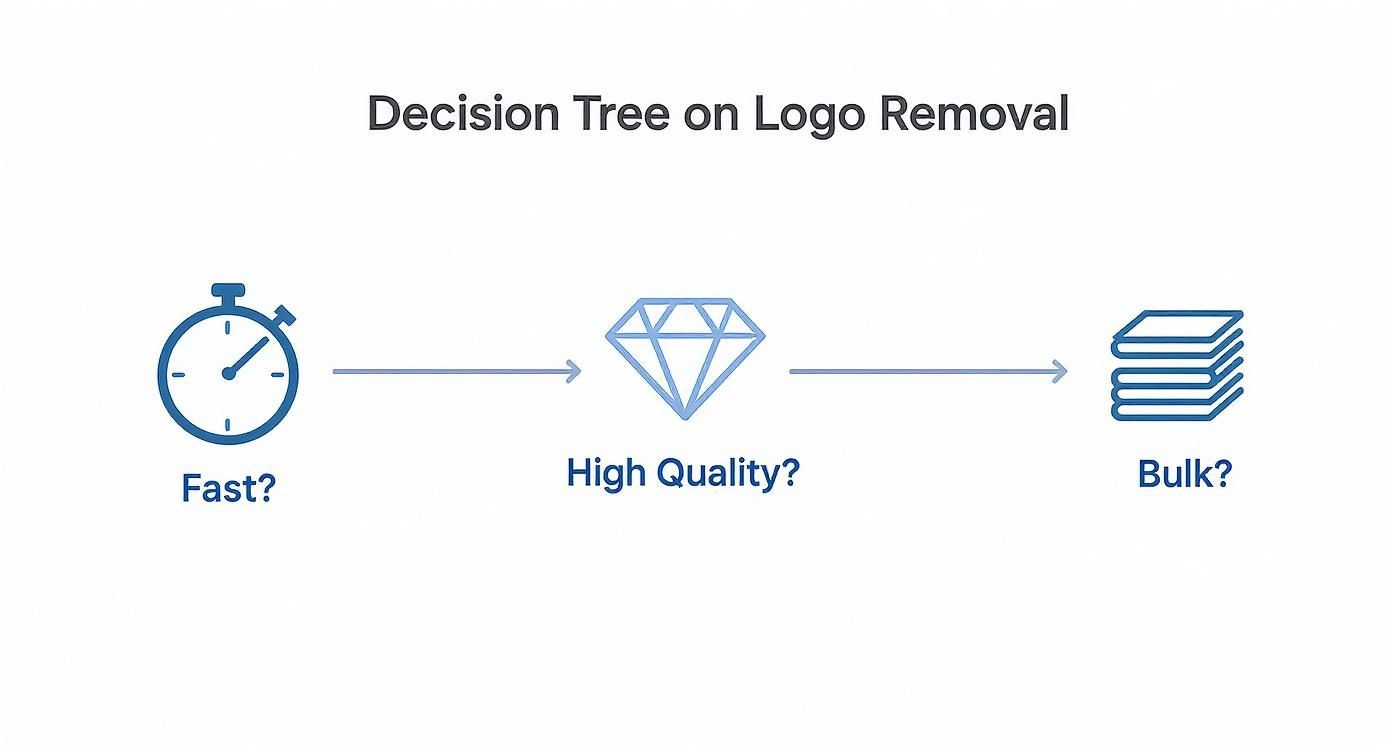
As the flowchart shows, if speed is what you need, AI is the way to go. But if absolute, uncompromising quality is the goal, manual editing still reigns supreme.
Finding the Right AI Tool
The world of AI video editing is growing fast, with new options popping up all the time. When you're weighing your options, look for real-world examples. A trustworthy service will always have before-and-after videos that show how well it handles different kinds of footage. For creators and marketing teams working at scale, you can explore more video enhancement tips on the SoReel blog, where we cover a ton of topics to help you improve your workflow.
Ultimately, using AI to remove a logo from a video is about reclaiming your time. It gives creators and marketers the power to clean up footage, maintain brand consistency, and repurpose content without getting lost in the weeds of tedious editing. By understanding how the tech works and following a few best practices, you can get professional-looking results in a fraction of the time.
Manual Techniques in Professional Editing Software
When a quick AI fix is "good enough" but your project demands perfection, it’s time to roll up your sleeves and jump into professional video editing software. For those jobs where every single pixel counts, platforms like Adobe Premiere Pro and DaVinci Resolve give you the granular control you need to remove a logo from a video so cleanly that no one will ever know it was there. This is less about speed and all about achieving a flawless, undetectable finish.
This need for precision is exactly why these tools are the foundation of a booming industry. The global video editing software market was valued at $3.09 billion in 2023 and is on track to hit $5.13 billion by 2032. Powerhouses like Adobe Premiere Pro, which holds a massive 35% market share, are especially popular in creative hubs like the UK, showing just how much demand there is for high-control editing. You can read more about the expanding video editing software market and its trends.
Masking and Blurring for Subtle Obscurity
One of the most direct manual methods is to combine masking with a bit of blur. This doesn't technically remove the logo but rather obscures it, making it unreadable by blending it into the background. It works brilliantly when the logo is sitting on top of a busy, textured background where a slight distortion won’t draw the eye.
Think of a video shot at a bustling street market, with a news channel logo tucked in the corner. All that movement and visual detail in the background are your best friends here. By drawing a mask around the logo and applying a gentle Gaussian blur, you can effectively melt the logo into the scene's visual noise. The key is to be subtle; you only want enough blur to make the graphic illegible, not to create an obvious soft spot in the frame.
This kind of professional interface gives you the timeline and tools needed for precise, frame-by-frame adjustments.
Content-Aware Fill for Intelligent Removal
When you're dealing with logos on simpler, more static backgrounds, Content-Aware Fill is an incredibly powerful tool. You'll find it in software like Adobe After Effects, and you can access it through Premiere Pro. It works like a much smarter, more controllable version of the automated AI tools. It analyses the pixels surrounding the area you've masked and intelligently generates new content to fill the gap.
This method is perfect for a shot where a logo is sitting over a clear blue sky, a plain wall, or a smooth gradient. You just draw a mask around the logo, and the software gets to work rebuilding the background behind it.
Pro Tip: For the cleanest results with Content-Aware Fill, work on clips with consistent lighting. Sudden changes in light or shadows moving across the logo can sometimes confuse the algorithm, forcing you to make manual adjustments on different sections of the clip.
Unlike fully automated tools, you get a say in how the fill is generated. You can tell the software which frames to reference for the new pixels, giving you the power to guide the replacement and prevent weird visual glitches.
Cloning and Patching for Ultimate Control
When nothing else works and you need absolute perfection, cloning is the most advanced technique in your toolkit. The Clone Stamp tool lets you manually "paint" over the logo by sampling pixels from another part of the same frame. It’s a painstaking, frame-by-frame process, but the results can be truly invisible.
Imagine a logo is placed over someone's patterned shirt. Neither a blur nor a Content-Aware Fill is going to convincingly replicate that intricate pattern. With the Clone Stamp, you can sample a clean piece of the fabric right next to the logo and carefully paint over it, making sure the pattern lines up perfectly.
This requires a steady hand and a keen eye, especially if the camera or the subject is moving. You'll need to use keyframes to animate the position of both your patch and the source point to match any movement in the video. It’s definitely time-consuming, but for high-stakes projects, the unparalleled quality is well worth the effort.
Here are a few extra pointers to keep in mind:
- Mask Feathering: Always soften the edges of your mask to avoid a hard, obvious box around your edit. A feathered edge helps the corrected spot blend naturally into the rest of the shot.
- Motion Tracking: If the logo or the camera is moving, use your software’s built-in motion tracker. It can automatically animate your mask or patch to follow the logo, saving you hours of manual work.
- Opacity Adjustments: Don't be afraid to lower the opacity of your patch or blurred layer. Sometimes, letting a tiny amount of the original logo show through can make the effect look more natural than a completely solid cover-up.
Batch Processing Logos for High-Volume Workflows
Editing one video is manageable. But what happens when you’re staring down a folder with hundreds, maybe even thousands, of video assets that all need a logo removed? This is a real-world headache for marketing agencies mid-rebrand, content managers trying to update an entire archive, or developers building a platform that relies on user-generated content. Doing it by hand just isn't an option—it's painfully slow, incredibly expensive, and you’ll never get a consistent result.
This is where batch processing and API-driven tools come into play. They take a tedious, one-by-one task and turn it into a scalable, automated workflow. Instead of opening each file, you can point a system at an entire directory of videos and let it apply the same logo removal logic to every single one. It’s all about efficiency and scale.
The Business Case for Automation
Let's imagine your company just pushed a massive rebrand. You've got five years of video testimonials, product demos, and social media clips, all branded with the old logo. The sheer manual effort to update that library is staggering; we’re talking about hundreds of hours of work that could be spent on something far more valuable.
Automated batch processing turns this problem into a simple content pipeline. You just tell the software where to look, and it gets to work. It'll systematically:
- Find the logo in each video using a template or coordinates.
- Apply the same removal technique, whether that's inpainting or blurring.
- Save all the clean, updated videos to a new destination folder.
This ensures your branding is consistent across your entire video library and, more importantly, frees up your creative team to focus on new projects instead of mind-numbing edits. The ROI isn't just about the hours you save; it's about how quickly you can get your new brand identity out into the world.
Integrating Logo Removal with an API
If you need even more firepower, an API (Application Programming Interface) lets you build logo removal directly into your own apps, a content management system (CMS), or a digital asset management (DAM) platform. This is the standard approach for developers and any business dealing with a constant stream of new video.
For example, a platform that pulls in user-generated social media content could use an API to automatically strip out TikTok or Instagram watermarks as the videos are uploaded. This keeps everything on the platform looking clean and uniform, with zero manual input from an editor. The entire process just happens seamlessly in the background.
When you connect to a service via its API, you’re basically giving your own software the superpower of logo removal. Every new video can be processed on the fly, making the whole workflow incredibly efficient and completely hands-off once it’s set up.
Tools like SoReel were built specifically for these high-volume situations. They offer powerful batch processing features and API access, giving businesses the ability to create scalable video workflows that fit their exact needs. It’s worth exploring the different plans and pricing for high-volume video processing to see how these tools can slot into a marketing or development budget. For any organisation that’s serious about managing video at scale, moving from manual edits to an automated system is a game-changer.
How to Preserve Video Quality After Editing
You've done the tricky part and removed that pesky logo from your video. But don't hit "export" just yet. All that careful work can be undone in an instant by the wrong export settings, leaving you with a pixelated mess that looks far worse than the original.
The battle for quality really begins with your source file. I can't stress this enough: always start with the highest-quality version of the video you can get your hands on. If you begin with a clip that's already been compressed and re-uploaded a dozen times, you're starting with a handicap because so much visual data is already gone.
Getting this right is more important than ever. The demand for crisp, high-quality video is booming—just look at the UK's video production industry. It pulled in a massive USD 5,925.4 million in revenue in 2023 and is projected to explode to USD 36,011.1 million by 2030. This growth just underscores how vital professional post-production skills are. You can get a deeper look into these trends in the UK video production market forecast.
Understanding Codecs and Bitrate
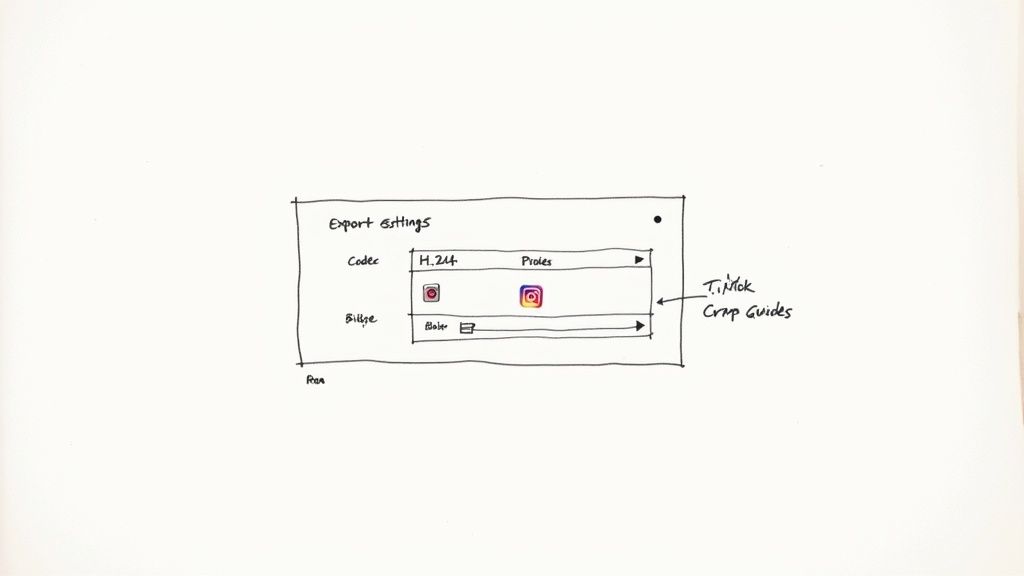
So, what actually happens when you export? Your video editor uses a codec—a piece of software that compresses the visual data—to package everything up. The two you’ll run into most often are H.264 and ProRes.
- H.264 (or AVC): This is the go-to for pretty much all online video. It's brilliant at creating small, manageable file sizes without completely wrecking the quality. It's your best bet for the final export to platforms like YouTube, Instagram, and TikTok.
- ProRes: This one, developed by Apple, is a professional workhorse. It keeps way more detail than H.264 but creates massive files. I only use ProRes for intermediate steps, like if I’m bouncing a clip between After Effects and Premiere Pro. It’s not for your final upload.
Right alongside the codec, bitrate is the dial that truly controls your video's final quality. It dictates how much data is used for each second of video. More data means better quality and a bigger file. Simple as that.
Think of bitrate like the thread count on a set of sheets. A high thread count (high bitrate) gives you a smooth, detailed fabric. A low thread count (low bitrate) feels rough and you can see the individual threads, which is basically what pixelation is in a video.
Platform-Specific Export Settings
You can’t just use a one-size-fits-all approach for social media. Each platform has its own secret sauce for compression, so you need to tailor your settings to play nicely with their algorithms. Here’s my advice for TikTok and Instagram.
Exporting for TikTok
TikTok's 9:16 vertical format can actually be a lifesaver. If the logo you're trying to hide is tucked away in a corner, often the easiest fix is just to crop in slightly. It completely sidesteps any complex editing and gives you a perfectly clean result.
When you're ready to export, stick to these settings:
- Codec: H.264
- Resolution: 1080x1920
- Frame Rate: Match the original clip (usually 24, 25, or 30 fps)
- Bitrate: I find 8-10 Mbps is the sweet spot for a good balance between quality and file size.
Exporting for Instagram
Instagram Reels and Stories share those same vertical specs. And just like with TikTok, sometimes the cleverest solution is the simplest. Instead of a complicated removal, why not just cover the logo with a small sticker, a text box, or even your own branding? It feels native to the platform and gets the job done fast.
For your Instagram Reels export, here's what works best:
- Codec: H.264
- Resolution: 1080x1920
- Frame Rate: Match the source (Instagram supports up to 60 fps)
- Bitrate: Instagram's compression can be quite aggressive, so I recommend a slightly higher bitrate of 10-15 Mbps to give it a bit more data to work with.
By starting with a solid source file and dialing in your export settings for the specific platform, you can make sure your final video looks just as sharp as you intended.
The Legal and Ethical Side of Removing Logos
Before you even think about the technical steps, let’s talk about the legal and ethical stuff. It’s easy to get caught up in how to remove a logo, but it's far more important to understand when you should—and when you absolutely shouldn't. This isn't about getting bogged down in legal speak; it's about being a responsible creator.
At the heart of it are two key ideas: copyright and trademark. Copyright protects the video itself, the actual creative work. A trademark protects the logo, which is a symbol tied to a brand. Messing with either without permission can land you in some seriously hot water.
When Is It Generally Okay?
So, when can you remove a logo without looking over your shoulder? Thankfully, there are a few straightforward situations where it's perfectly fine.
The most common reason is simple: it’s your own video. Maybe you lost the original, high-quality file and the only copy you have is one you downloaded from your own social media profile. Removing that platform's watermark to get a clean version for repurposing is completely legitimate.
Another scenario is for internal review purposes. Imagine a marketing agency creating a mock-up for a client. They might temporarily remove a stock footage watermark to show how the final ad will look before they actually buy the licence for the clip.
- You own the content: If you’re the original creator, you’re just getting back a clean version of your own work.
- Personal or educational use: Using a short clip for something like a private school project is very different from distributing it publicly.
- You have clear permission: The person who owns the copyright has explicitly told you it’s okay to modify the video.
When Is It a Major Red Flag?
You cross a clear line the second you try to pass off someone else’s work as your own, especially if it’s for commercial purposes. Grabbing another creator's viral video, scrubbing their watermark off, and re-uploading it to your own account is a textbook case of copyright infringement.
It's more than just bad form; it deceives your audience and steals credit and potential revenue from the person who actually did the work.
Here's a quick gut check. Ask yourself: "Am I doing this to hide who originally made this video or pretend it's mine?" If the answer is yes, stop. You're heading into dangerous territory.
Ultimately, the best logo removal tools are designed to give you control over your own creative assets. They’re there to help you maintain a consistent brand look or reuse your work across different channels. Using them to take from other creators just poisons the well for everyone. Always stick to your own footage or get permission first.
Common Questions About Removing Video Logos
When you're first diving into removing logos, a few questions always pop up. It's smart to think about quality, cost, and the legal side of things before you get started—it can save you a world of pain later. Let's get into what people usually ask.
Can I Remove a Logo from a Video Without Leaving a Trace?
That’s the million-dollar question, isn't it? Getting a perfectly invisible removal really depends on the video itself. If you've got a logo sitting on a simple, flat background—like a clear blue sky—an AI tool can often work magic and make it vanish. There's plenty of clean background information for the software to sample from and rebuild the area.
But things get tricky fast. Picture a logo over a detailed, moving background with shadows and light constantly changing. In a scenario like that, a flawless removal is a tall order. You're more likely to end up with a slight blur or a minor visual artefact where the logo used to be. The real goal is to make the edit unnoticeable to the average viewer, not to create something that would pass a forensic inspection. For the absolute cleanest results, nothing beats getting your hands dirty with manual techniques in professional software.
What Is the Best Free Software to Remove a Logo?
If you're looking for professional power without the price tag, DaVinci Resolve is your best bet, hands down. The free version is a full-blown editing suite, packed with the kind of advanced masking, tracking, and colour correction tools you need to do the job properly. Yes, there's a learning curve—it's not a one-click solution—but the quality you can achieve is in a completely different ballpark.
You’ll find tons of free online AI removers, but they almost always come with a catch. Many will slap their own watermark on your video, limit your file size, or spit out a final file that’s noticeably lower quality. For any kind of serious work, those trade-offs just aren't worth it.
Key Insight: The "best" free tool really boils down to what you need. For a quick and dirty fix where quality isn't paramount, an online tool might do. But if you want professional results, investing the time to learn DaVinci Resolve is an unbeatable move.
Is It Legal to Remove a TikTok or Instagram Watermark?
This is a big one, and the answer comes down to one thing: how you plan to use the video.
If you're the original creator simply stripping a platform's watermark to repurpose your own content—say, posting your TikTok video on Instagram Reels—that's generally fine. You're just taking back a clean copy of something you made.
The legal and ethical lines get crossed when you download someone else’s video, scrub their watermark off, and pass it off as your own. That's a straight-up copyright infringement. It’s not only a bad look, but it can get your account penalised or land you in legal trouble. The golden rule is to stick to your own content or get clear, written permission from the creator. If you want to dig deeper into this, you can always check our comprehensive FAQ page.
Ready to get clean, professional-looking video without the manual effort? SoReel’s AI delivers natural results in minutes, helping you optimise your content for any platform. Try SoReel today and see what it can do for your workflow.