Enhance Video Quality Online with AI Upscaling

Learn how to enhance video quality online using AI. Our guide covers upscaling, audio fixes, and social media export settings for crystal-clear video.
To truly enhance your video quality online, you need to go beyond basic editing filters. The real magic happens when you use an AI-powered tool to intelligently upscale resolution, scrub away digital noise, and automatically fix colour imbalances. These platforms are built to be incredibly user-friendly, turning grainy, amateur footage into crisp, clear video in just a few clicks. It's about making professional-grade results accessible to everyone, and this guide will walk you through the entire workflow without getting bogged down in complex software.
Why High-Quality Video Is No Longer Optional
Let's be blunt: grainy, pixelated video just doesn't fly anymore. Viewer expectations have gone through the roof, and delivering sharp, professional-looking content is now a non-negotiable for everyone, from social media creators to established businesses. The days of people forgiving fuzzy footage are well and truly over. Today, quality is a direct reflection of your credibility and a key driver of engagement.

This isn't just a feeling; it's a fundamental shift in how we consume media. We're constantly surrounded by polished content from streaming services and social feeds, which has pushed the demand for high-definition visuals to an all-time high. When your video looks subpar, it's an instant turn-off. Viewers are far more likely to scroll straight past, subconsciously assuming the content itself is just as low-value.
The New Standard of Visuals
The modern viewer is visually literate. With 4K screens becoming standard on everything from our TVs to our phones, our eyes are now trained to expect impeccable sharpness and clarity. Trying to watch a low-resolution video on a high-res screen is a jarring experience, one that immediately signals a lack of care or professionalism.
This is particularly true here in the highly competitive UK market. In 2024, the average UK internet adult spent nearly five hours every day watching video content. Think about that. With 85% of households subscribed to at least one streaming service and millions glued to platforms like YouTube and BBC iPlayer, the baseline for what's considered "good quality" has been permanently elevated. This constant exposure to pristine visuals fuels the need for tools that can enhance video quality online, because people now expect that flawless look everywhere. You can dive deeper into these UK viewing habits over at S&P Global Market Intelligence.
High-quality video isn't just about looking good; it's about holding attention. In a never-ending feed of content, clarity is what makes someone stop and watch instead of just swiping away.
What This Means for You
Whether you're a marketer launching a new ad, a creator posting your next TikTok, or a business sharing a product demo, the quality of your video is your digital handshake. It’s the very first impression you make. The good news? You no longer need a film degree or a van full of expensive gear to meet this high standard.
AI-powered platforms have made fixing common video problems surprisingly straightforward. These tools offer a powerful, accessible solution to:
- Boost Low Resolution: Effortlessly turn a blurry 720p clip into a crisp 1080p or even 4K video.
- Eliminate Digital Noise: Clean up that distracting graininess you often get from shooting in low light.
- Correct Poor Lighting: Automatically adjust brightness, contrast, and colour to make your visuals really pop.
This guide cuts through the technical jargon and gives you a practical workflow you can start using today. By using a smart AI video enhancer like SoReel, you can take mediocre footage and transform it into something that looks genuinely stunning, ensuring your message not only gets seen but also respected.
Getting Your Video Ready for its AI Makeover
Before you jump into enhancing your video quality online, a little bit of prep work can make a world of difference. Honestly, it’s the most crucial part of the whole process. The old saying "garbage in, garbage out" couldn't be more accurate here. If you give the AI a solid foundation to work with, the results can be truly spectacular.
Your first mission is to track down the original, highest-quality version of your video. Try to avoid using a clip you've ripped from social media. Those files are almost always heavily compressed, and that compression process throws away a ton of visual data the AI desperately needs to do its job well. Even a small improvement in the source quality can lead to a massive leap in the final output.
Find the Best Possible Source File
This is your number one priority. A raw file straight from your camera, an original screen recording, or an export from your editing software will always give you better results than something that's been squashed down and re-encoded. The aim is to feed the AI as much of that original picture information as you can.
Imagine you've got two versions of the same video. One is a 500 MB .MOV file, fresh off your camera. The other is a 50 MB .MP4 you squashed down to send in an email. That big .MOV file is your golden ticket. It's packed with detail, even if you can't see the difference with your own eyes.
The logic is pretty straightforward: An AI is fantastic at intelligently restoring detail that was once there, but it can't just invent information that was completely obliterated by heavy compression. Always, always start with the biggest, least-compressed file you have.
Making this one choice can be the difference between a pretty good result and a genuinely stunning one. Once you’ve got your best file, it's time to tidy it up.
Get Rid of Unwanted Metadata
Every video file carries around a bunch of hidden data, known as metadata. This can be anything from the camera model you used to the exact GPS coordinates of where you filmed. While that can be useful sometimes, it can also cause issues with certain platforms or reveal information you'd rather keep private.
If you’re a creator who repurposes content for platforms like TikTok or Instagram, stripping this metadata is a non-negotiable step. It helps the platform see your video as a brand-new upload, which can help you sidestep any algorithmic penalties that sometimes hit re-posted content.
There are plenty of free online tools and desktop apps that can do this for you. Just search for a "video metadata remover," and you'll find simple options that will scrub your file clean in seconds. This gives you a fresh start before the real enhancement begins.
Deal with Watermarks Before You Upscale
Watermarks are a common pain point, especially if you’re working with stock footage or clips you've saved from elsewhere. If you try to enhance a video that has a watermark, the AI can get confused and create some really bizarre artefacts. It sees the watermark as part of the scene and tries to "improve" it along with everything else, which usually ends up looking like a distorted mess.
The correct workflow is to remove the watermark first, and only then move on to the AI enhancement. Tools like SoReel are built for exactly this task. They use AI to intelligently rebuild the pixels hiding behind the watermark, giving you a clean slate that looks completely natural—way better than just blurring or cropping it out.
Here’s a quick pre-flight checklist to run through:
- Source File: Have you found the original, uncompressed video? Always choose the raw camera file over a downloaded copy.
- Metadata: Scrub all identifying data, especially if the video is heading to social media.
- Watermarks: Use an AI tool to remove any watermarks before you do anything else.
- Trim the Fat: Chop out any bits of the video you don't need. You'll save a lot of processing time by only working on the final clips.
By taking care of these few things first, you're not just uploading a file; you're setting the stage for the AI to deliver its absolute best work. That little bit of effort up front is what gets you the cleanest, sharpest, and most professional-looking results.
Your AI Video Enhancement Workflow
Right, you’ve prepped your video file and it’s ready for the main event. This is where the real transformation happens, but it’s not just about hitting an ‘enhance’ button and crossing your fingers. To get truly flawless results, you need to understand what each AI feature is doing and why. Let's walk through a complete workflow, using the kind of tools available online today, to see how you can turn that fuzzy footage into something genuinely impressive.
The journey from a low-quality clip to a polished final product involves a few key stages. This simple flow shows the prep work that comes before the AI even gets a look in.
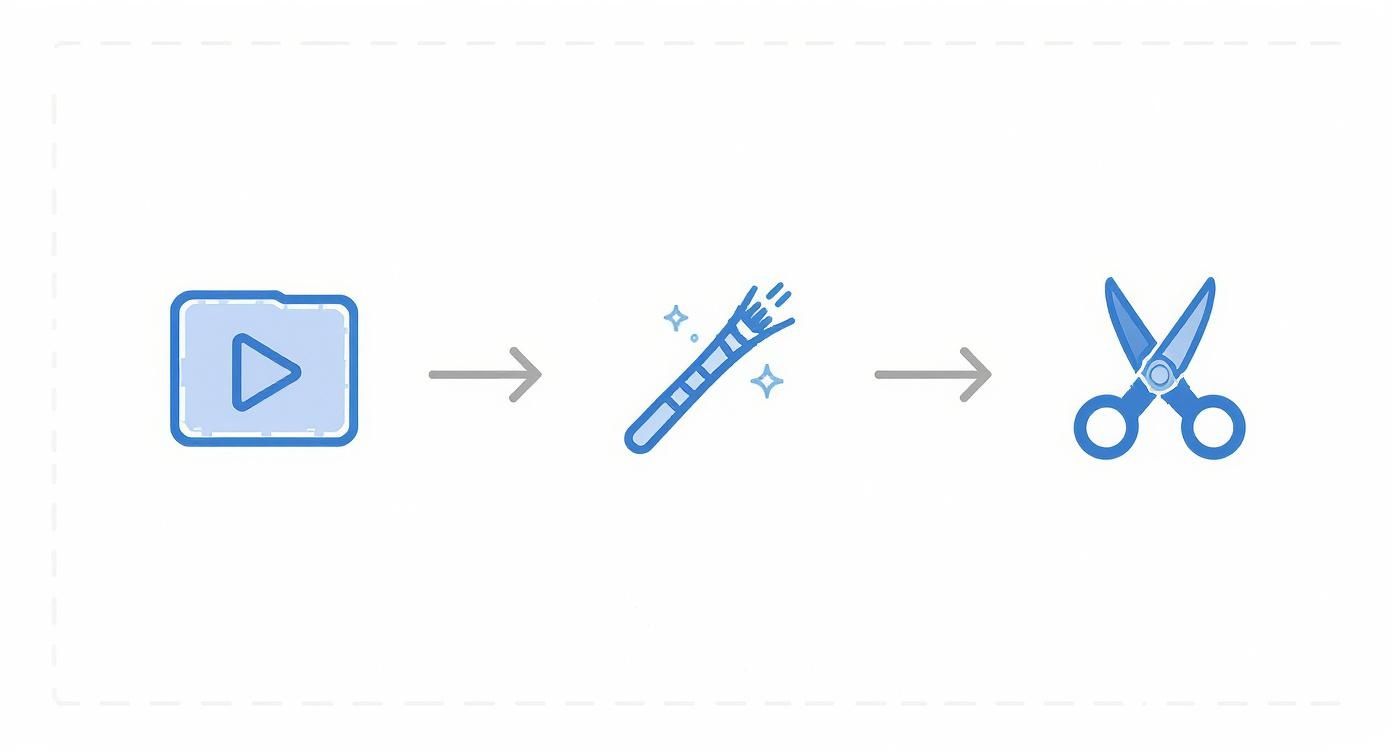
Think of it this way: you’re giving the AI the best possible starting point. By selecting your best source file, cleaning off any watermarks, and trimming it down, you’re setting the stage for a much better final result.
Kicking Off with AI Upscaling
The first and most powerful move you'll make is almost always AI upscaling. This is where the magic really begins. If you're starting with a 720p or even a 480p clip, AI upscaling intelligently generates new pixels, effectively turning it into crisp 1080p or even stunning 4K.
This isn't your old-school upscaling, which just stretched the existing pixels and made everything blurry. Modern AI algorithms analyse the surrounding content to predict and create new, realistic detail. It’s more like a digital artist meticulously restoring a painting than someone just making a bigger photocopy. It’s fantastic for breathing new life into old home movies or making a smartphone clip look like it was shot on a much higher-end camera.
Just the other week, I was working on a project with some old conference footage shot in standard definition. It was grainy, soft, and pretty much unusable for a new marketing campaign. By running it through an AI upscaler, we managed to get it to a sharp 1080p, making it perfect for social media clips.
Tackling Digital Noise and Grain
Once you’ve boosted the resolution, the next logical step is denoising. This process specifically targets that distracting grain and those speckles you often see in videos shot in low light. Digital noise can make even a high-resolution video look cheap and amateurish.
AI denoising is a game-changer because it can tell the difference between unwanted grain and genuine fine details in your footage. Older denoising tools often just applied a slight blur to everything, leaving the video looking soft and mushy. A modern AI, on the other hand, can surgically remove the noise while keeping important elements like faces, text, and textures perfectly sharp.
Pro Tip: Always upscale before you denoise. Upscaling can sometimes amplify the noise that’s already there, making it more obvious. By cleaning it up after the resolution boost, you’re giving the AI a clearer, sharper image to work with, which leads to a much cleaner finish.
Comparing AI Video Enhancement Features
To make sense of all the tools at your disposal, it helps to see how they stack up. Each AI feature has a specific job, and knowing which one to use and when is key to a professional-looking result.
| AI Feature | Primary Function | Best Used For |
|---|---|---|
| AI Upscaling | Increases video resolution by intelligently adding new pixels. | Turning SD or 720p footage into crisp 1080p or 4K. |
| Denoising | Removes digital grain and noise without blurring fine details. | Cleaning up footage shot in low-light conditions. |
| Colour Correction | Automatically balances brightness, contrast, and saturation. | Fixing poorly exposed shots or making colours pop. |
| Audio Enhancement | Cleans up background noise and normalises volume levels. | Improving dialogue clarity and removing distracting hums or hiss. |
Using these features in the right order—typically upscaling, then denoising, then colour—creates a logical workflow that builds upon each improvement for the best possible outcome.
Perfecting Colour and Lighting
With the resolution and clarity sorted, it’s time to focus on the look and feel. Intelligent colour correction is an AI feature that automatically analyses your video’s histogram to adjust brightness, contrast, and saturation. The goal is a balanced, visually appealing image.
This is a massive timesaver. Manually colour grading footage can be a long and tedious process, but AI can often get you 90% of the way there in seconds. It’s brilliant for rescuing underexposed shots, adding a bit of punch to flat, washed-out colours, and ensuring the lighting looks consistent across different clips.
This is more important than you might think. Viewer expectations are at an all-time high, especially in the UK, where the penetration of Subscription Video-on-Demand (SVoD) services in households has shot up by around 240% between 2015 and 2024. With services like Netflix growing its UK subscriber base by over 262.5% in that same period, people are simply used to seeing pristine picture quality. AI colour correction is a vital tool for meeting that standard.
Enhancing the Audio Experience
Let's be honest: visuals are only half the battle. Poor audio can completely ruin an otherwise great video. Thankfully, many online platforms now include AI audio enhancement features designed to clean up your sound.
This usually involves a few key functions:
- Noise Reduction: This isolates and removes persistent background sounds like the hum of an air conditioner, a whirring computer fan, or distant traffic noise.
- Volume Normalisation: This makes sure your audio levels are consistent throughout the video, so your viewers aren't constantly reaching for the volume control.
- Voice Clarity: Some of the more advanced tools can specifically identify and boost the frequencies of human speech, making dialogue much clearer and easier to follow.
A crisp, clear soundtrack makes your content feel far more professional and, crucially, keeps your audience locked in. Don't ever skip this step.
Putting It All Together
The best part is that you don’t have to juggle a dozen different apps to do all this. Many modern platforms, like SoReel, let you apply all these enhancements in a single, cohesive process. You can upload your video, tick the boxes for the improvements you want—upscaling, denoising, colour correction, and audio cleanup—and let the AI handle everything in one go.
This efficiency is a huge advantage, especially when you're working with multiple clips. For anyone handling a high volume of content, it’s worth looking into the options on our pricing page to find a workflow designed for scale. This integrated approach saves you from jumping between different pieces of software, creating a smooth and powerful process that delivers brilliant results every time.
Mastering Export Settings for Social Media
You've done all the hard work. You’ve prepped your video, stripped the metadata, and used AI to upscale it to perfection. But there’s one final hurdle that can undo all that effort in an instant: the export settings. We’ve all felt that sinking feeling when a crystal-clear video turns into a pixelated mess the moment it hits Instagram or TikTok.
This happens because social media platforms are ruthless with compression. They have to be, to save server space and make sure videos load quickly for everyone.

The secret is to beat them at their own game. By giving their compression algorithms a file that’s already neatly optimised, you take control. You’re essentially doing half the work for the platform, which stops its automated system from making harsh, quality-destroying cuts on your behalf.
Playing the Compression Game
Think of social media compression like a really strict data budget. Each platform gives your video a specific data allowance, known as the bitrate. If you upload a massive, high-bitrate file, the platform's algorithm will chop it down to size with a digital meat cleaver, sacrificing sharpness, detail, and colour along the way.
Your goal is to export a file that’s already as close as possible to the platform's preferred specifications. This dramatically reduces the amount of re-compression needed, preserving all that beautiful quality you worked so hard to achieve.
Giving a platform a perfectly formatted video file is the single best way to protect its quality. You're not trying to trick the algorithm; you're working with it to ensure your content looks its best after upload.
Codecs and Containers: The Technical Bits
Before we get into the settings, let's quickly demystify two terms you'll see everywhere: codecs and containers. It’s simpler than it sounds, I promise.
A container is just the file type itself, like .MP4 or .MOV. It's the digital box that holds all the video, audio, and metadata together. For pretty much all social media, .MP4 is the one to use. It's universally compatible and highly efficient.
A codec (which stands for coder-decoder) is the technology that does the actual compressing and decompressing of the video data inside that container. The most widely supported and reliable codec is H.264 (AVC). While newer options like H.265 (HEVC) exist, H.264 is still the gold standard for social platforms. It guarantees your video will play smoothly for everyone, everywhere.
Platform-Specific Export Recommendations
Every platform has its own slightly different compression recipe, but thankfully, their ideal settings are very similar. If you stick to these guidelines, you'll get consistently great results whether you're posting to TikTok, Instagram Reels, or YouTube Shorts.
To make things easy, here’s a quick-reference guide with the ideal settings for the major players.
Optimal Export Settings for Social Media
| Platform | Recommended Resolution | Recommended Bitrate (Mbps) | Recommended Codec |
|---|---|---|---|
| TikTok | 1080 x 1920 (Vertical) | 8-15 Mbps | H.264 (AVC) |
| Instagram Reels | 1080 x 1920 (Vertical) | 10-15 Mbps | H.264 (AVC) |
| YouTube Shorts | 1080 x 1920 (Vertical) | 10-16 Mbps | H.264 (AVC) |
| LinkedIn Feed | 1920 x 1080 (Horizontal) | 10-20 Mbps | H.264 (AVC) |
Let's break down why these specific settings are so important.
Resolution: Always aim for 1080p (which is 1920 pixels on the longest side). Here’s a pro tip: even if you enhanced your video to 4K, it's often better to downscale it to 1080p yourself before exporting. This gives you far more control over the final look than letting the platform's clumsy algorithm do it for you.
Frame Rate: Keep it simple and stick to 30 frames per second (fps). While 60 fps can be great for capturing smooth slow-motion, social platforms are optimised for 30 fps for standard playback.
Bitrate: This is arguably the most critical setting of all. For a 1080p video at 30 fps, the sweet spot is a bitrate between 10-15 Mbps (megabits per second). Pushing it much higher just results in a bigger file that will get crushed by compression anyway. Go too low, and you'll start seeing ugly digital artefacts.
Audio: Don't forget the sound! The standard here is the AAC codec, a sample rate of 48 kHz, and a bitrate between 192-320 kbps. This combination delivers crisp, clear audio without adding unnecessary bulk to your file size.
Nailing these export settings is the final, crucial step in your workflow. It ensures that the time you spent on AI upscaling, denoising, and colour correcting isn't thrown away at the last second, letting your content shine with the professional polish it deserves.
Advanced Strategies for Content Creators
If you're an agency, a marketer, or a creator juggling a high volume of content, enhancing videos one by one just isn't practical. It's a bottleneck. When you're staring down a folder with dozens of clips, efficiency becomes everything. You need to shift from single edits to a smarter, scalable workflow.
This is where you can really let the technology do the work for you. By adopting the right tools, you can build an automated system that keeps your quality consistently high without you having to spend hours on repetitive tasks. It's about making your production pipeline work for you, not the other way around.
Speed Things Up with Batch Processing
Let's say you've just shot 20 short-form videos for a new TikTok campaign. They all need the same treatment: upscaling to 4K, a little denoising, and your signature colour grade. Going through them individually would be tedious and frankly, a huge waste of time.
This is exactly what batch processing was made for. Instead of uploading and tweaking each video separately, you can just select the whole lot, apply a single set of enhancement rules, and let the AI handle it all at once.
It’s more than just a time-saver—it’s a powerful tool for quality control. Batch processing guarantees every video gets the exact same treatment, giving your entire campaign or series a consistent, professional finish.
That kind of uniformity is vital for building a recognisable brand. Whether you're processing five videos or 50, your audience gets a cohesive visual experience that reinforces your style.
Go Fully Automatic with an API
For developers, large-scale agencies, or businesses running their own custom platforms, the next step is integrating an API (Application Programming Interface). Essentially, an API lets your own software talk directly to an AI enhancement service, creating a completely hands-off, automated process.
Just think about what this makes possible:
- User-Generated Content (UGC) Platforms: Imagine a platform where every video a user uploads is automatically cleaned up and enhanced, creating a baseline level of quality across the board.
- Marketing Automation: A marketing team could build enhancement right into their digital asset management (DAM) system. Any new video added gets processed instantly, ready for use in campaigns.
- Custom Video Apps: A developer could build an app that offers AI video enhancement as a premium feature, all powered by an API running quietly in the background.
This approach means you can programmatically enhance video quality online without anyone needing to click a button. It’s the ultimate way to operate at a large scale, giving you a serious edge in efficiency.
The push for this level of quality is massive. Take the UK's video streaming market—it generated around USD 13.99 billion in 2024 and is expected to climb to USD 45.59 billion by 2030. With live streaming making up over 76% of that revenue, maintaining quality is paramount. This huge market pressure is exactly why platforms are adopting automated tools to meet viewers' expectations. You can read more about the booming UK video streaming market and what it means for content.
Tools like SoReel are designed for these exact needs, offering powerful batch processing and a straightforward API. By bringing these strategies into your workflow, you’re no longer just editing videos—you’re building a smart, scalable content machine.
Got Questions About AI Video Enhancement? We've Got Answers
When you first dive into enhancing videos online with AI, it’s completely normal to have a few questions. The technology can feel a bit like magic, and that often sparks curiosity about its actual capabilities and limitations. Let's run through some of the most common queries I hear, which should help you get a clearer picture.
Setting the right expectations from the get-go is crucial. AI is an incredibly powerful tool, but it's not a silver bullet that can fix every single video flaw. Knowing where it shines and where it struggles will help you plan your projects better and get the best possible results from your footage.
Can AI Really Fix a Hopelessly Blurry Video?
This is probably the number one question, and the honest answer is… it depends. If your video is just a bit soft or slightly out of focus, AI can work wonders. It’s brilliant at sharpening edges and intelligently reconstructing details to make a 720p clip look like it was shot in 1080p or even 4K.
But what if the shot is a complete blur—where the subject is just an unrecognisable smudge? In that case, there's very little data for the AI to work with. Think of it like a detective trying to solve a case with zero clues. The AI needs some existing pixel information to make an educated guess about what the original scene looked like. When that information is gone, it can't just invent details out of thin air.
The rule of thumb is this: AI can dramatically improve a poorly focused video, but it can't rescue a shot that's a total, incomprehensible blur. It enhances what's already there; it doesn't create detail from nothing.
Why Does My Longer Video Take Forever to Process?
Processing time is directly tied to the sheer volume of data the AI has to crunch. A 30-second 1080p clip is one thing, but a 10-minute 4K video is a completely different animal. The workload doesn't just grow linearly; it grows exponentially.
Here’s a breakdown of what’s happening behind the scenes:
- Video Length: It's simple maths. A longer video just has more frames. A one-minute video running at 30 frames per second has 1,800 individual images that the AI needs to process one by one.
- Resolution: Higher resolution means way more pixels in every single frame. A 4K frame has four times the number of pixels as a 1080p frame, which means four times the computational heavy lifting for the AI.
- Number of Enhancements: Each feature you add—upscaling, denoising, colour correction—is another complex task. Layering multiple enhancements on top of each other naturally extends the processing time.
So, when you submit a long, high-resolution video and ask for multiple enhancements, you're essentially asking the AI to perform billions of calculations. This is why a bit of patience is needed when you want to enhance video quality online for larger projects.
What's the Real Difference Between Free and Paid Tools?
As you search for solutions, you'll see a mix of free and paid options. While a free tool can be handy for a quick, simple task, they almost always come with major limitations that professional, paid platforms are designed to solve.
The main differences usually boil down to a few key areas.
| Feature | Free Tools | Paid Tools (Like SoReel) |
|---|---|---|
| Watermarks | Almost always plaster their own logo over your final video. | Give you a clean, watermark-free export every time. |
| Resolution Limits | Usually cap your output at 720p or maybe 1080p. | Allow for high-resolution exports, including 4K. |
| Processing Speed | Run on slower servers, which means you'll be waiting a while. | Invest in powerful hardware for significantly faster processing. |
| Feature Set | Typically offer one or two basic functions, if that. | Provide a full suite of tools (upscaling, denoising, etc.). |
| File Size Limits | Restrict the size or length of the video you can upload. | Offer generous limits built for professional workflows. |
Ultimately, the right choice comes down to your needs. If you just need a quick, one-off fix and top-notch quality isn't a priority, a free tool might do the trick. But for creators, marketers, and anyone who needs consistent, high-quality, and professional-looking results, a paid service is an essential investment. For a more detailed breakdown, have a look at our frequently asked questions page, which covers a lot more ground.
Ready to see what your footage can really look like? With SoReel, you get a complete set of AI-powered tools designed to upscale, denoise, and perfect your videos in minutes. Give it a try and see the difference for yourself at https://soreel.app.